Install MetaMagic
for Capture One.
This illustrated guide covers the complete Windows setup for MetaMagic for Capture One 0.3.1 — from the ZIP file to your first generated keywords and IPTC metadata.
What you need.
Download and
extract the ZIP.
Download MetaMagic-for-Capture-One.coplugin.zip. Extract the ZIP before trying to install the plugin.
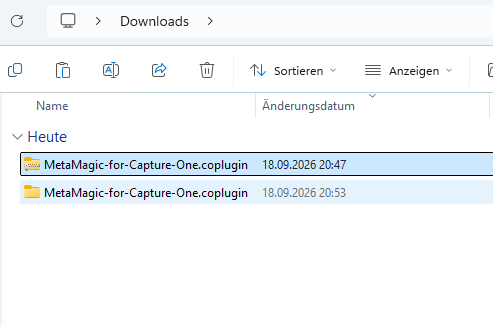
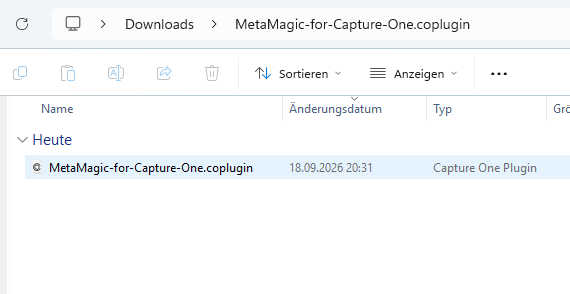
.coplugin package.Install the
.coplugin package.
Double-click MetaMagic-for-Capture-One.coplugin. Capture One should open the plugin installer and register MetaMagic automatically.
Open Capture One
Plugin Preferences.
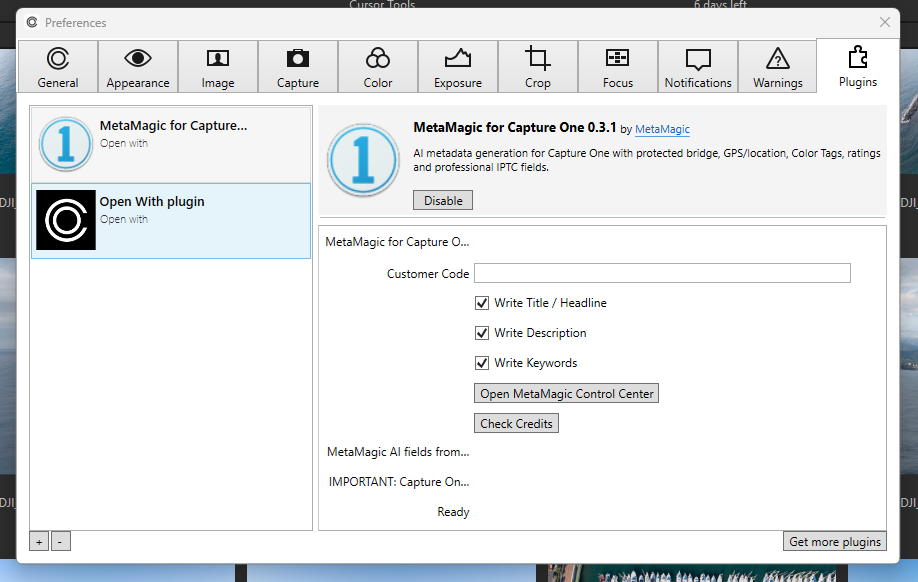
In Capture One, open Preferences → Plugins. Select MetaMagic for Capture One. Enter your Customer Code, choose the core write options you want, then open the MetaMagic Control Center for advanced settings.
Configure Capture One
XMP metadata loading.
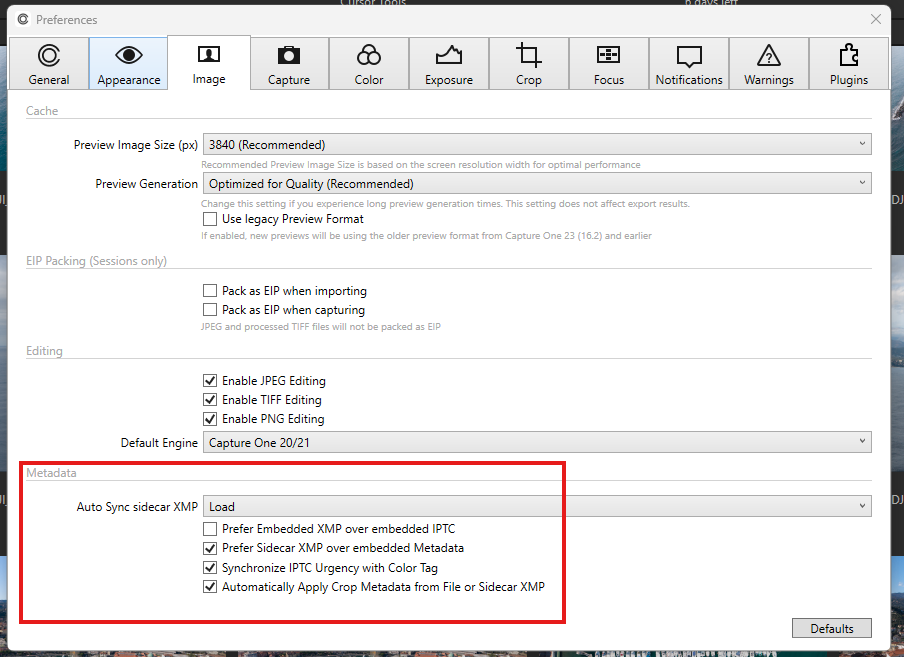
Open Preferences → Image → Metadata. Set Auto Sync sidecar XMP to Load. Enable Prefer Sidecar XMP over embedded Metadata. If you use MetaMagic Color Tags, keep Synchronize IPTC Urgency with Color Tag enabled.
Configure the
Control Center.
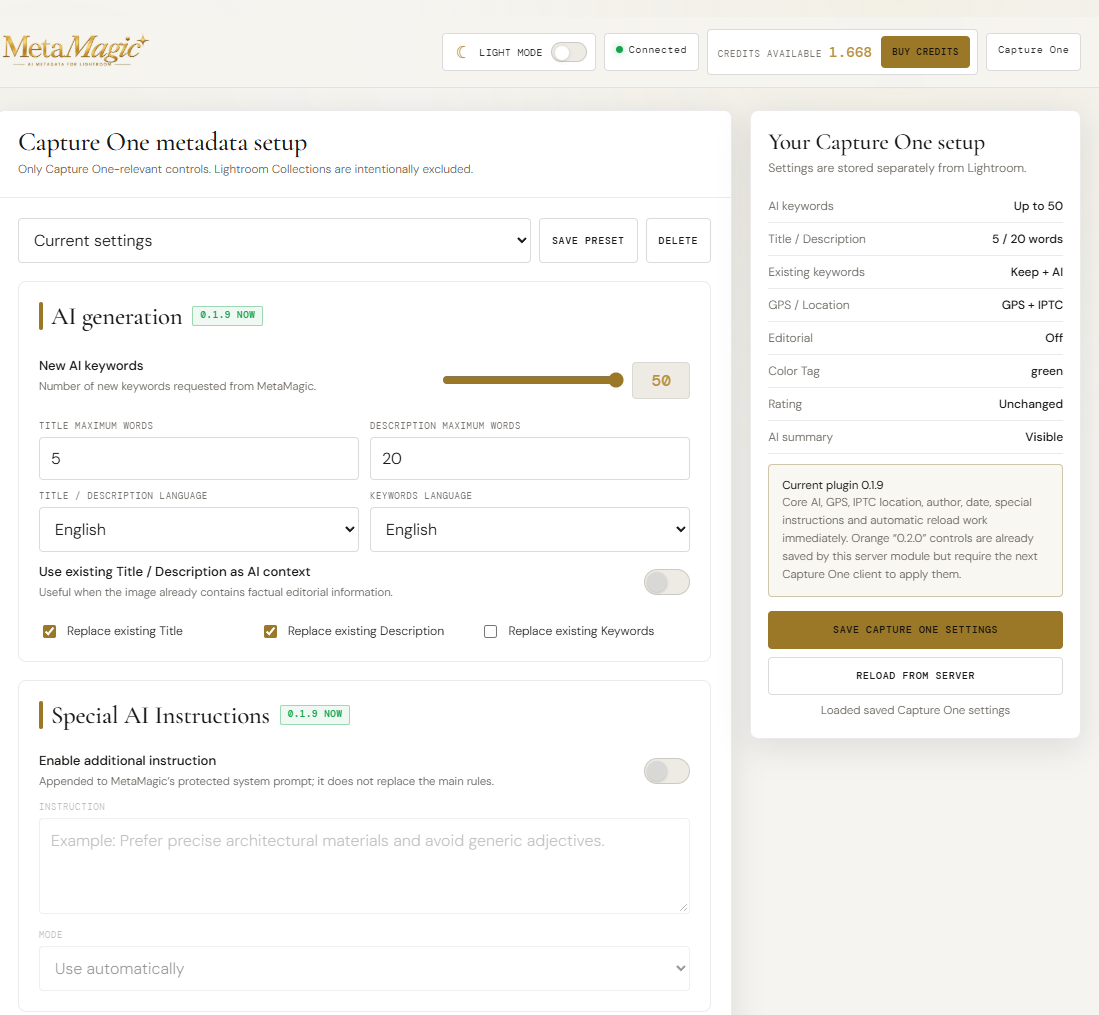
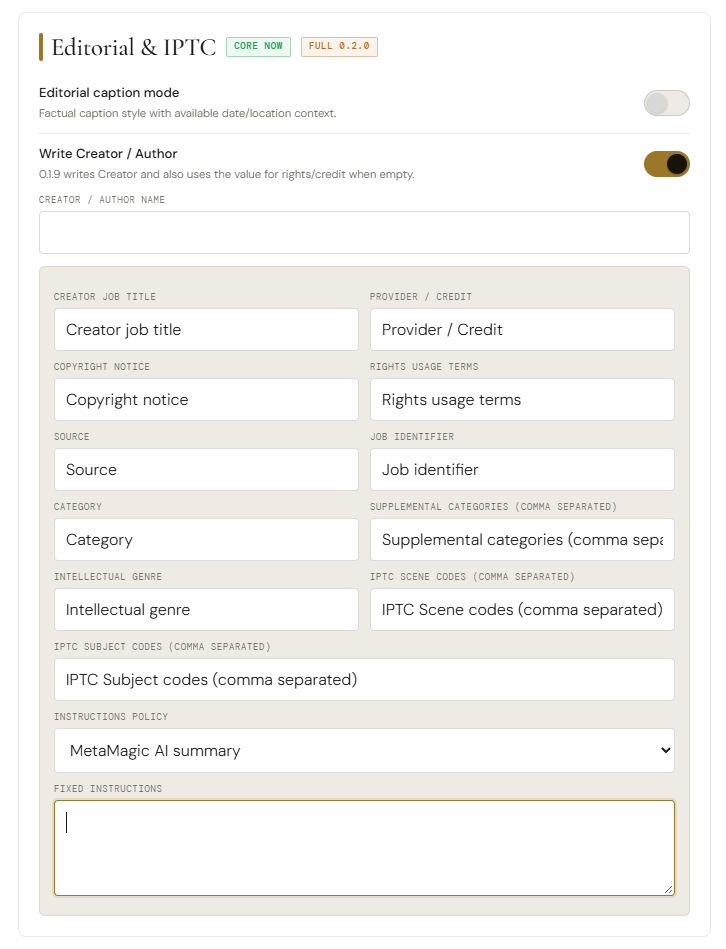
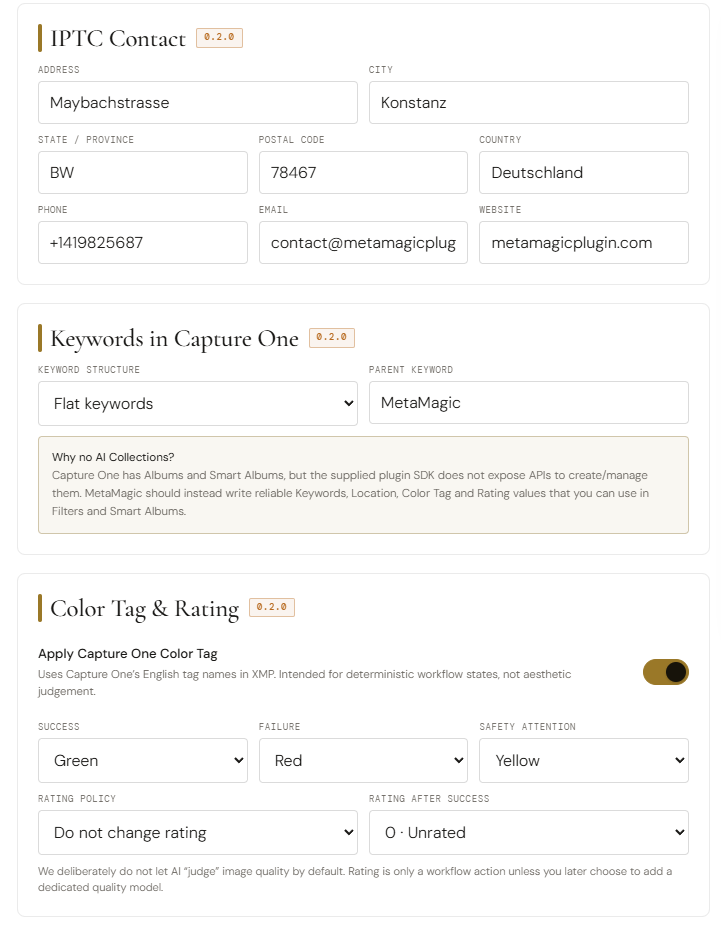
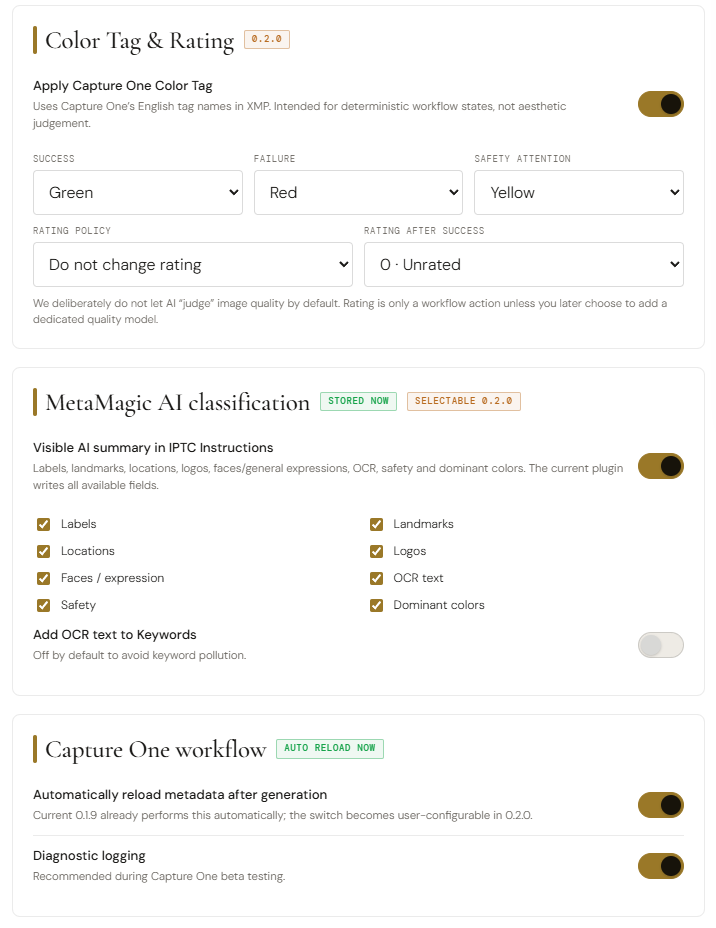
Open the MetaMagic Control Center from the plugin preferences. The Capture One profile is stored separately from Lightroom and includes AI generation, GPS/location, IPTC Contact/Status, keyword structure, Color Tag, Rating, AI classification and reload controls.
Generate metadata
from a photo.
Right-click the selected photo, choose Open With, then Generate Metadata with MetaMagic.

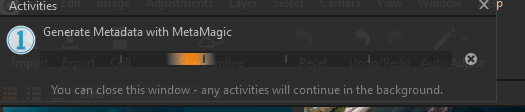
A small Capture One activity window appears while generation runs. You can close that activity window; Capture One indicates that active background tasks continue.
Verify the
generated metadata.
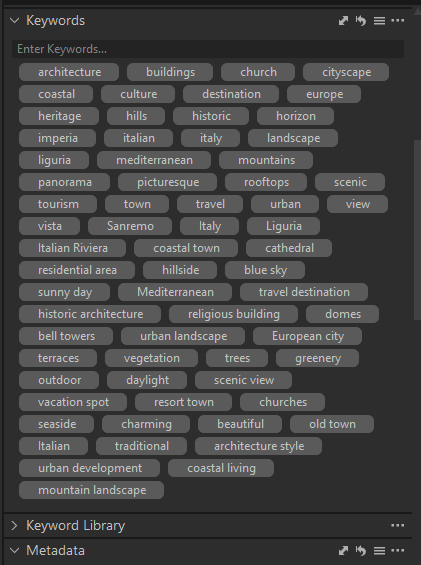
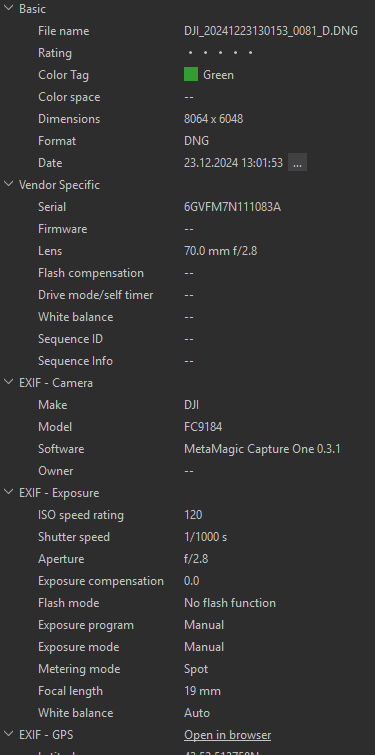
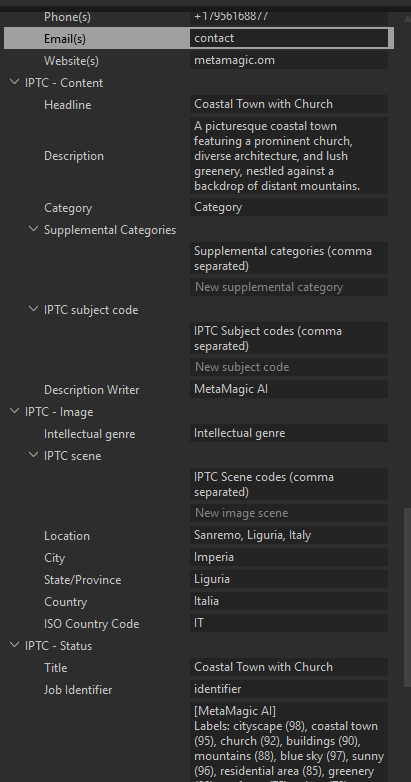
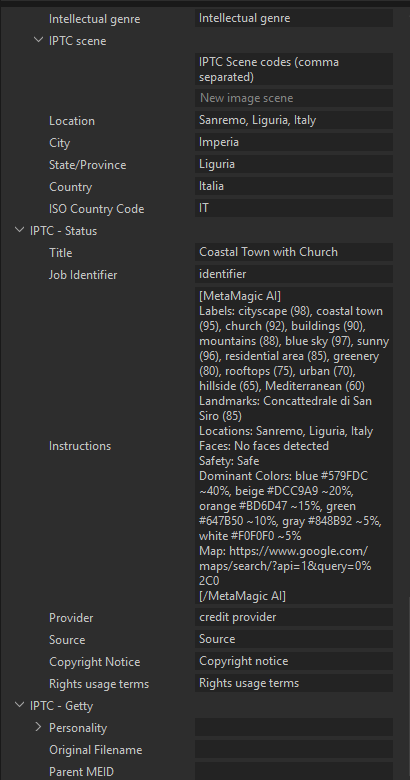
After the write/reload cycle completes, check Keywords and Metadata. Depending on your Control Center settings you should see AI keywords, Title/Headline, Description, GPS-derived location, Color Tag, IPTC Contact/Status and the MetaMagic AI summary.
Your Capture One
workflow is ready.
The setup above only needs to be done once. From then on, select a photo, run MetaMagic, and use your saved Capture One Control Center profile.