Lightroom Classic face recognition not working?
Here is what actually helps.
Hundreds of unnamed faces, the same child split into ten stacks, photos that never show up under the right name. Why People View struggles with family catalogs, what you can fix inside Lightroom, and a simple way to get one clean album per person.
You wanted something simple: all the photos of your daughter in one place, ready for a photo book. Lightroom Classic has face recognition built in, so it should take an evening. Then the evening turns into a weekend, the “Unnamed People” pile keeps growing and half of her photos still are not where they should be. You are not alone: “is Lightroom's facial recognition just really bad?” is one of the most common questions in Lightroom forums.
How Lightroom Classic face recognition works
In the Library module, People View (press O, or View › People) scans your photos for faces. The first time, Lightroom asks whether to find faces in the entire catalog or only as needed. Faces are grouped into stacks of similar faces; you type a name, confirm suggestions with the check mark, and every name becomes a person keyword in your Keyword List.
That last part is the useful one: once a photo has the keyword Emma, you can filter it, search it and build collections from it. The difficult part is getting the right keyword on every photo.
Why it misses faces in family catalogs
- Children change every year. A baby, a toddler and a ten-year-old look like three different people, so the same child ends up in many stacks.
- Real family photos are not portraits. Profiles, sunglasses, hats, a face turned to the birthday cake, a small face in a group photo: these are the photos most often missed.
- Suggestions are not answers. Lightroom proposes names, but every suggestion still has to be confirmed by hand, photo after photo.
- Large catalogs take time. Indexing tens of thousands of photos runs in the background and can pause or stop, so new imports are not always covered.
7 fixes inside Lightroom Classic
Check that face detection is on
In Catalog Settings › Metadata, make sure faces are detected automatically, and in the Activity Center (click the identity plate, top left) check that face detection is not paused.
Work folder by folder
Instead of the whole catalog at once, open one folder or collection, switch to People View and finish it. Smaller batches give better suggestions and you see progress.
Name the clearest faces first
Start with sharp, front-facing photos. Every confirmed face gives Lightroom a better example for the next suggestions.
Use different ages for children
Name a few faces from each year. If the stacks still split, it is normal for growing kids: merge them by giving them the same name.
Run Find Faces Again on a mess
If a folder has wrong face regions or names, select its photos and use Library › Find Faces Again, then name them again.
Use one clear keyword per person
Put people under one parent keyword, for example People › Emma, so names do not mix with places and subjects in your Keyword List.
Check the missed photos with a filter
Filter a folder by “keyword does not contain Emma” and scan the thumbnails: it is often faster than waiting for suggestions.
Turn names into albums with smart collections
This is the step most people skip, and it is the one that makes the work pay off. A smart collection fills itself from a rule, so every photo that gets the keyword appears in the album automatically.
- Library › New Smart Collection, name it Emma.
- Rule: Keywords · contains words · Emma.
- Add rules for the album you want: “Capture Date is in the range 2025”, “Rating is ≥ 4 stars” for the printed photo book, or a second person for “Emma and Leo”.
When it still doesn't work: MetaMagic Faces
If People View still leaves you with hours of clicking, MetaMagic Faces is a small Lightroom Classic plugin we built for exactly this problem, first for our own family photos. You show it a few faces of a person, it searches the selected photos or the whole catalog, and it only asks you about the photos it is unsure of: is this Emma? Yes or no.

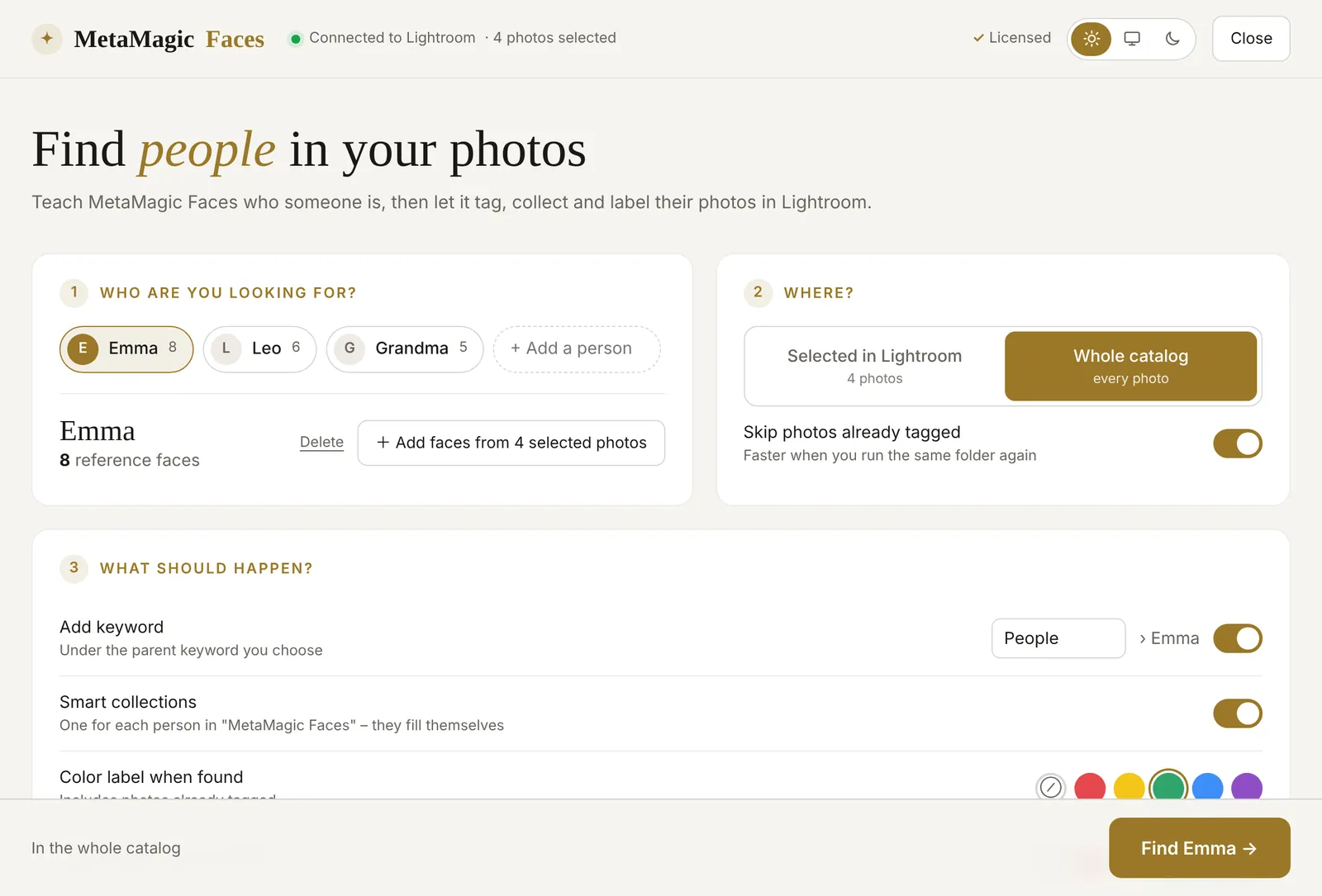
- Keywords and smart collections automatically: People › Emma and one smart collection per person, the albums described above without the manual work.
- Color labels for photos with or without the person, if you like.
- 100% local AI: recognition runs on your computer. Your family photos are never uploaded, not to us and not to any online AI service.
- Learns from your answers and from photos of different ages.
- $24 once, no subscription, 14 days free with every feature.
Find your family
in Lightroom Classic.
14-day free trial, then $24 one-time. Windows and Mac (beta), Lightroom Classic.
FAQ
Adobe and Lightroom are trademarks of Adobe Inc. MetaMagic is an independent product and is not affiliated with or endorsed by Adobe.