Find everyone at once.
One search, every face named.
MetaMagic Faces 0.8 looks for every person you taught in a single search, and it remembers the faces it has already found. Searching again, or for someone new, only reads the photos it has not seen yet.
Until now, MetaMagic Faces looked for one person at a time, or for a few people together. If you had taught ten family members, that meant ten searches through the same photos. With a big archive, that adds up fast. Version 0.8 changes how searching works.
Update: version 0.9 adds faces without a name, “No, it’s someone else” and the reference faces of every person. Read what is new in 0.9 →
Everyone in one search
Step 1 of the MetaMagic Faces page now has three choices: One person, Together and Everyone. Choose Everyone, and a single search looks for all the people you have taught.
- Every photo is read once. Each face is compared with everybody at the same time, instead of once per person.
- Each face gets one name. A face is never given to two people, so look-alike siblings are not mixed up.
- One review page, grouped by person. You only check the photos MetaMagic Faces is unsure about, person by person.
- Everyone found gets their keyword and smart collection, for example People › Emma and MetaMagic Faces › Emma.
- Color labels can mark photos where someone was found, and photos with nobody you taught.
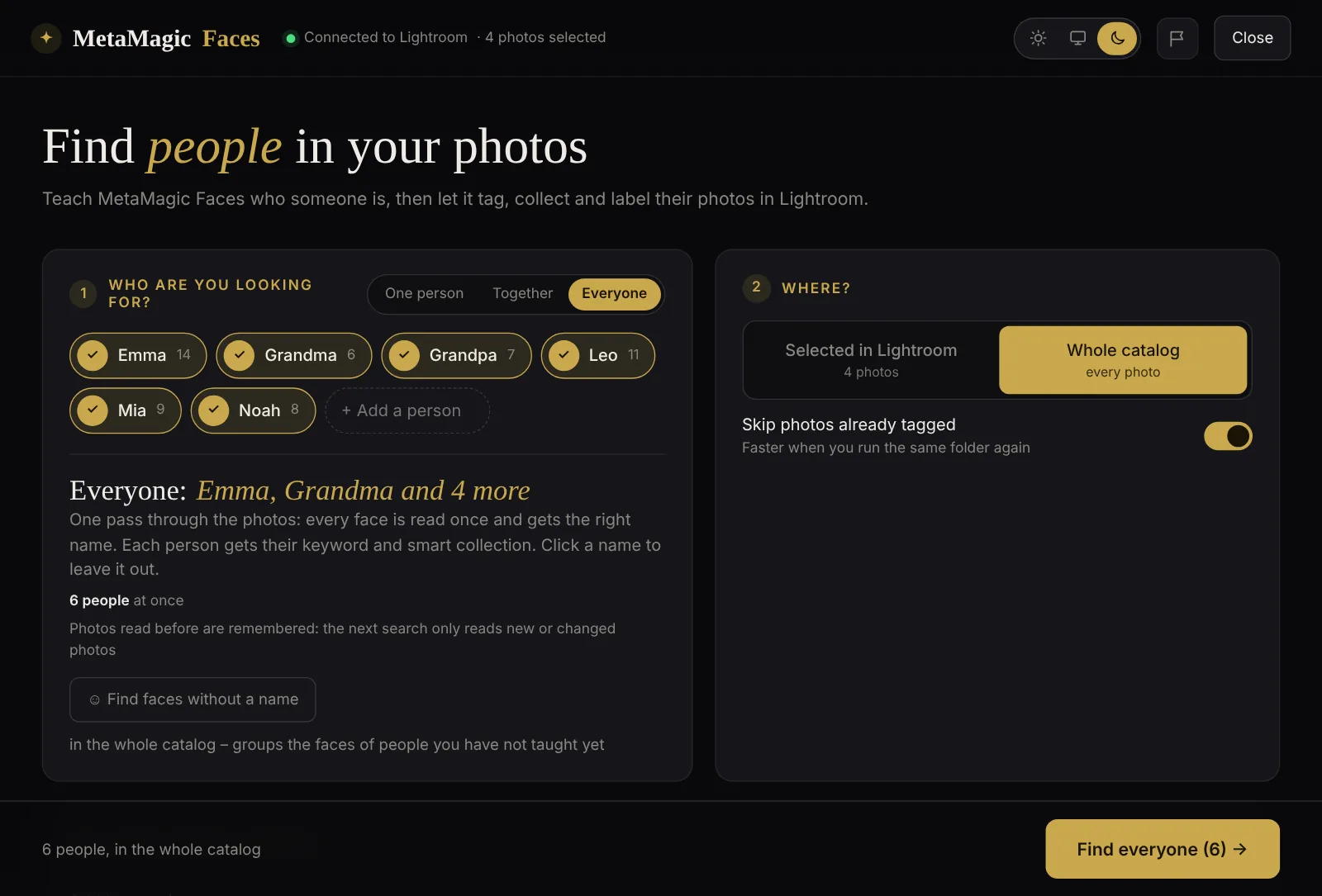
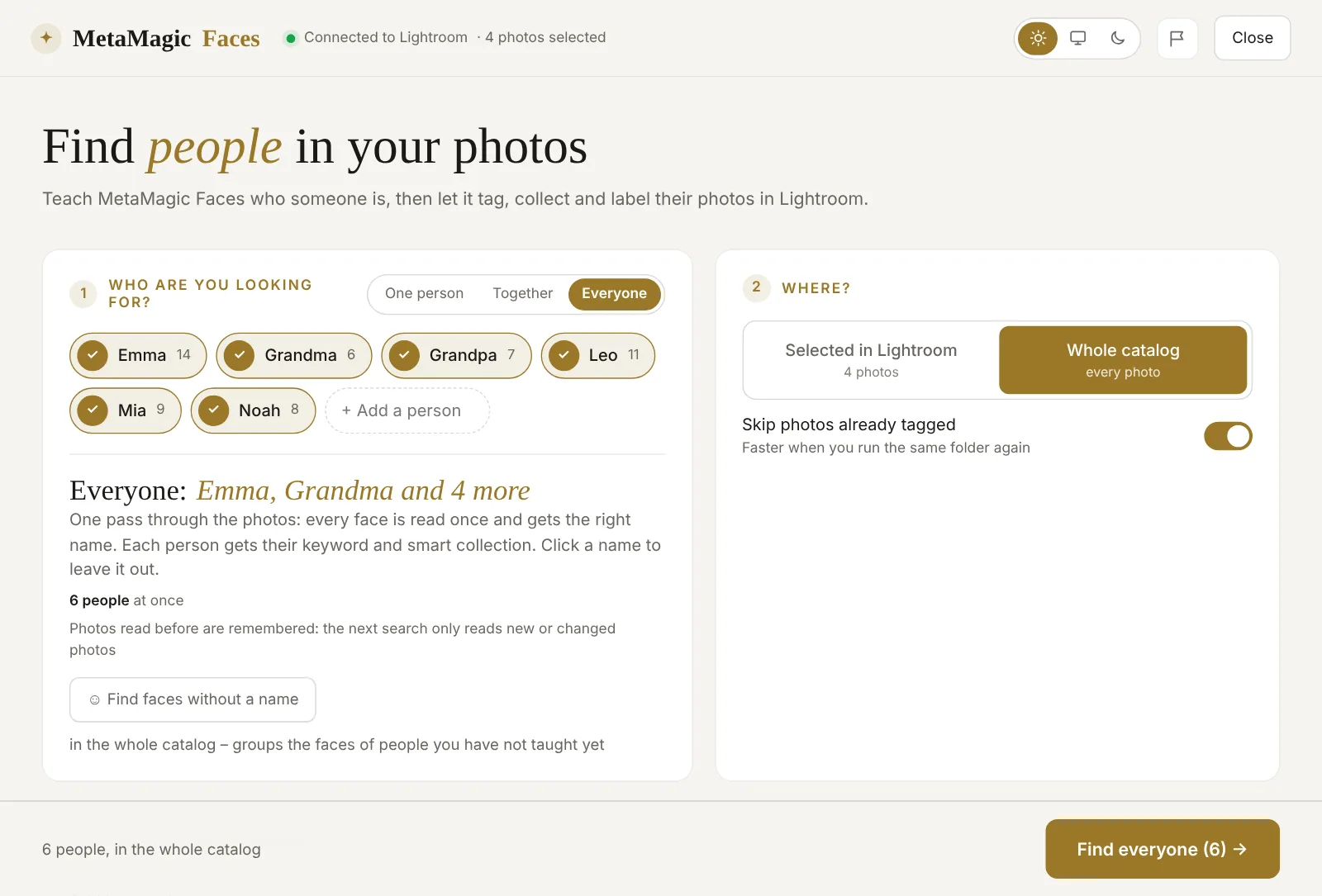
One person and Together still work as before. Together is the right choice when you want the photos where Emma and Leo are both in the picture, with a smart collection like Emma & Leo.
A memory for faces
The bigger change is under the hood. MetaMagic Faces now remembers the faces it has found in every photo: where each face is, and a short numeric fingerprint of it. No image is stored, only numbers, and only on your computer.
The next search compares those numbers instead of reading the photos again. That works for any search: the same person again, everyone, or a person you teach next month. Only new photos, or photos whose file or crop has changed, are read. When the search is done, MetaMagic Faces shows how many photos were already known and how many it had to read.
The memory is a small database of about half a kilobyte per photo, kept in a local folder that is not synced to the cloud. If you ever delete it, nothing breaks: the photos are simply read again.
Faster on big catalogs
The first search through a catalog is faster too:
- Photos are read in larger batches, several at the same time, using all the cores of your processor.
- While one batch is being analysed, Lightroom already prepares the previews of the next one.
- Long searches no longer slow down as they go. In earlier versions, a temporary file grew with every batch and made very long searches slower and slower.
- Photos that are already known and need no review do not need a Lightroom preview at all.
Tips for the first big search
The very first search of a large catalog still takes time, because Lightroom has to render a preview of every photo once. After that, the face memory does the work. A few tips:
- Teach everybody first, then run one search with Everyone on the whole catalog, for example in the evening.
- Build Standard previews in Lightroom beforehand (Library › Previews › Build Standard-Sized Previews). It can make the first search faster.
- You can stop at any time. Everything already read is remembered, so the next search continues with the photos that are left.
- Turn on “Skip photos already tagged” when you run the same folder again.
How to get version 0.8
If MetaMagic Faces is already installed, it updates itself the next time you open it in Lightroom Classic. Your people and reference faces stay as they are. New users can download it for Windows or Mac and try every feature free for 14 days. After that it costs $24 once, with no subscription and no credits. One licence works on up to 3 of your computers.
Name everyone
in your Lightroom catalog.
14-day free trial, then $24 one-time. Windows and Mac (Apple Silicon and Intel, beta).
FAQ
Adobe and Lightroom are trademarks of Adobe Inc. Apple, Mac and macOS are trademarks of Apple Inc. MetaMagic is an independent product and is not affiliated with or endorsed by Adobe or Apple.
Related: MetaMagic Faces is now on Mac · Lightroom Classic face recognition not working? 7 fixes