Faces without a name.
And “No, it’s someone else”.
MetaMagic Faces 0.9 finds the people you have not taught yet, lets you correct a wrong guess with the right name, shows the reference faces of every person and reads RAW files much faster.
Update: version 0.9.1 adds albums of several people, renaming a person and a clearer way to choose one name or several (it replaces the Everyone tab described below). Read what is new in 0.9.1 → With version 0.9.2 everything is on Mac too.
Version 0.8 brought “Everyone in one search” and the face memory. Version 0.9 is about the next questions we heard from photographers using it: “How do I start with a catalog full of faces?”, “What if it says the wrong person?” and “How do I fix a face I confirmed by mistake?”. Version 0.9 is available for Windows today; the Mac version follows.
Faces without a name
Until now you had to start by selecting photos of a person and picking their face. Now there is a second way: click Find faces without a name. MetaMagic Faces reads the selected photos (or the whole catalog), groups the faces of people you have not taught yet and shows them most frequent first.
- Type a name under a group and it becomes a person, with those faces as reference faces.
- Type the name of someone you already taught to add the faces to them.
- Click Not interested for faces you do not care about (strangers in the background, for example): that group is not shown again.
Then run Find or Everyone as usual to tag their photos. Thanks to the face memory, the photos read for this are not read again.
“No, it’s someone else”
Until now the review page asked “Is this Emma?” and you could only answer yes or no. Now every face has a ↪ button, and the full-photo viewer a Someone else… button: choose the right person, or type a new name.
- That person gets their keyword (and smart collection) on the photo.
- The face becomes one of their reference faces, so they are recognised better next time.
- The first person learns that this face is not them.
Reference faces of every person
Next to Delete there is now Reference faces: every face MetaMagic Faces uses to recognise that person, with the photo it comes from, and whether you added it or it was learned from one of your answers.
- Faces that look wrong come first: faces that do not look like the person’s other reference faces, or that look more like someone else you taught (a parent’s face learned as one of the children, for example).
- Said yes by mistake in the last search? One click on All no in “Learned in the last search” undoes it.
- Removed faces can be put back.
When you answer No to a match, MetaMagic Faces now also looks for the reference face that caused it and removes it if it does not fit the person.
Everyone, or only some people
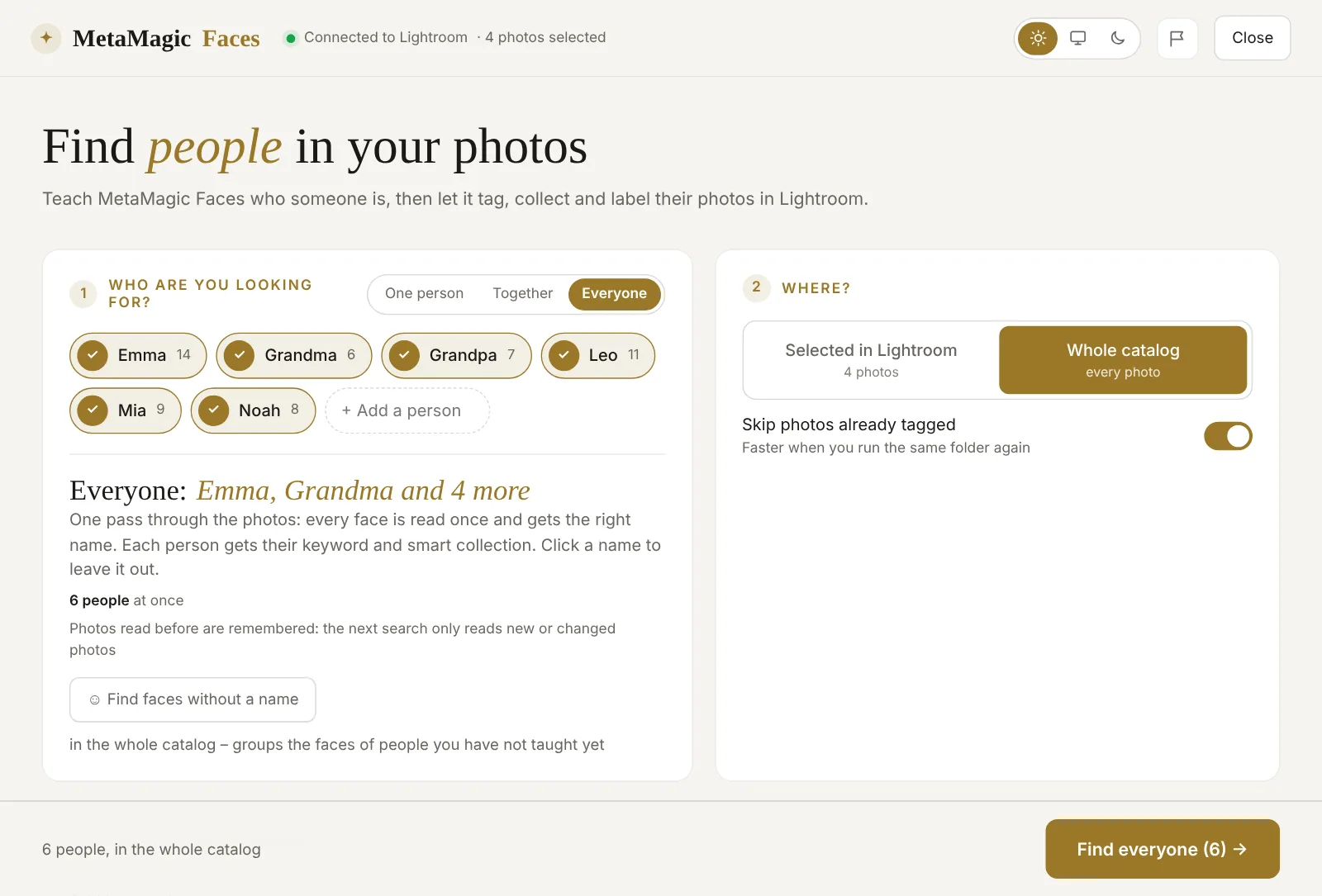
In Everyone you can now click a name to leave it out: look for the three children in one pass, without the grandparents. MetaMagic Faces remembers your choice for the next time.

More accurate, faster on RAW files
We tested several ways of comparing faces in a private test version and made the best one the default (Advanced › How faces are compared):
- Tiny, blurred and profile faces no longer match anyone by accident.
- One wrong reference face is not enough: a face must look like several reference faces of the person.
- Your “No” answers count: a face you rejected once gets a low score next time.
The old way is still there as Classic (0.8), if you prefer it.
For new photos MetaMagic Faces now reads the photo files directly instead of waiting for Lightroom to render a preview of each one. From a RAW file it reads only the small JPEG preview stored inside – the header of the file says where it is – so even photos on a hard disk are read quickly. Photos it cannot read that way (rotated in Lightroom, unusual formats, files on a disconnected drive) still use Lightroom previews.
If you used version 0.8, the face memory is taken over: your catalog is not scanned again.
How to get version 0.9
MetaMagic Faces updates itself the next time you open it in Lightroom Classic. Your people, reference faces and answers stay. New users can download it and try every feature free for 14 days, then it costs $24 once, with no subscription. The Mac version (beta) got everything with version 0.9.2.
The classic window inside Lightroom also got Everyone and a review window as big as your screen, but the new features above are in the main page (Library › Plug-in Extras › MetaMagic Faces…).
Name everyone
in your Lightroom catalog.
14-day free trial, then $24 one-time. Windows (version 0.9) and Mac (beta).
FAQ
Adobe and Lightroom are trademarks of Adobe Inc. Apple, Mac and macOS are trademarks of Apple Inc. MetaMagic is an independent product and is not affiliated with or endorsed by Adobe or Apple.
Related: MetaMagic Faces 0.8: find everyone at once · Lightroom Classic face recognition not working? 7 fixes